


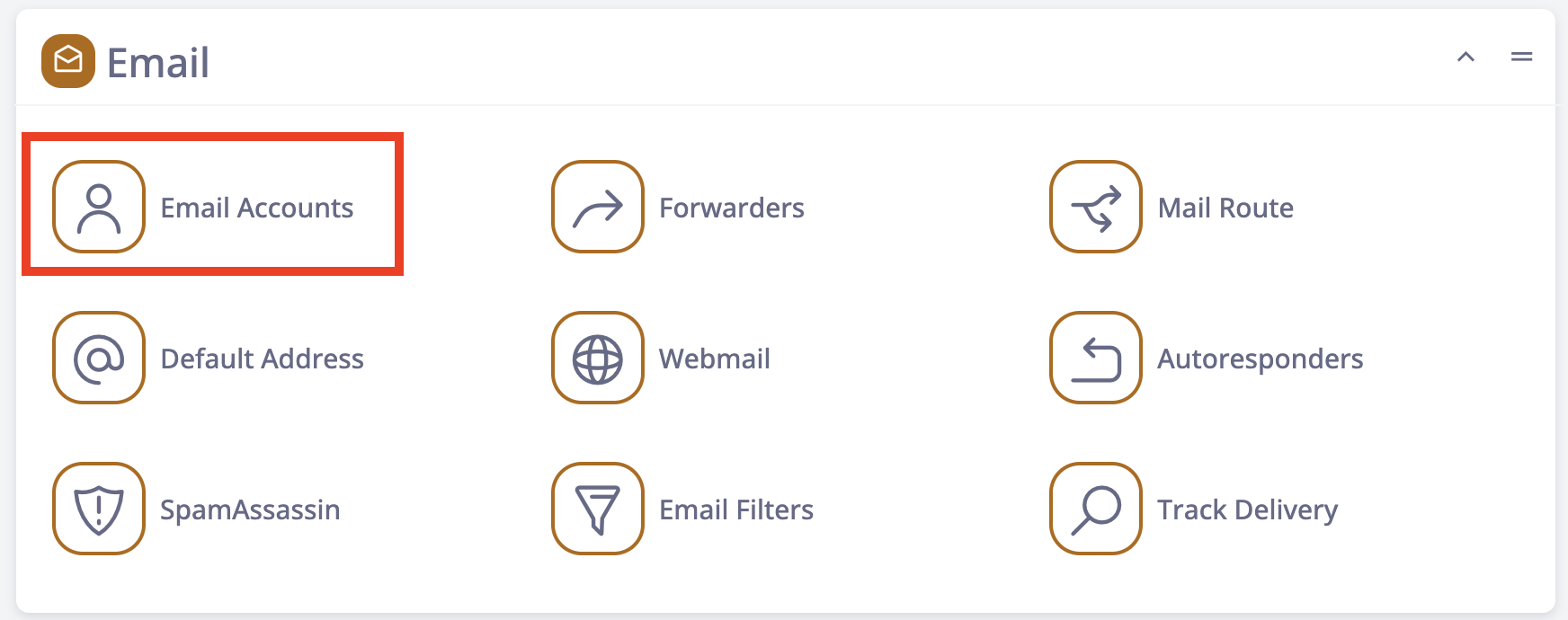
Log in to the control panel and navigate to Email Accounts.
The email account management tool is available on the main page of the control panel, within the Email section.
Choose a new email address and set a password:
At the bottom of the page, you will see a list of all existing email addresses created under your account. At the top, there is a form to create a new mailbox. You need to choose a username and select one of your domains from the corresponding dropdown menu. After that, you can set a password for the mailbox.
The password must be at least eight characters long and include at least one letter, one number, and one special character. You can also use the provided generator to create a strong and random password.
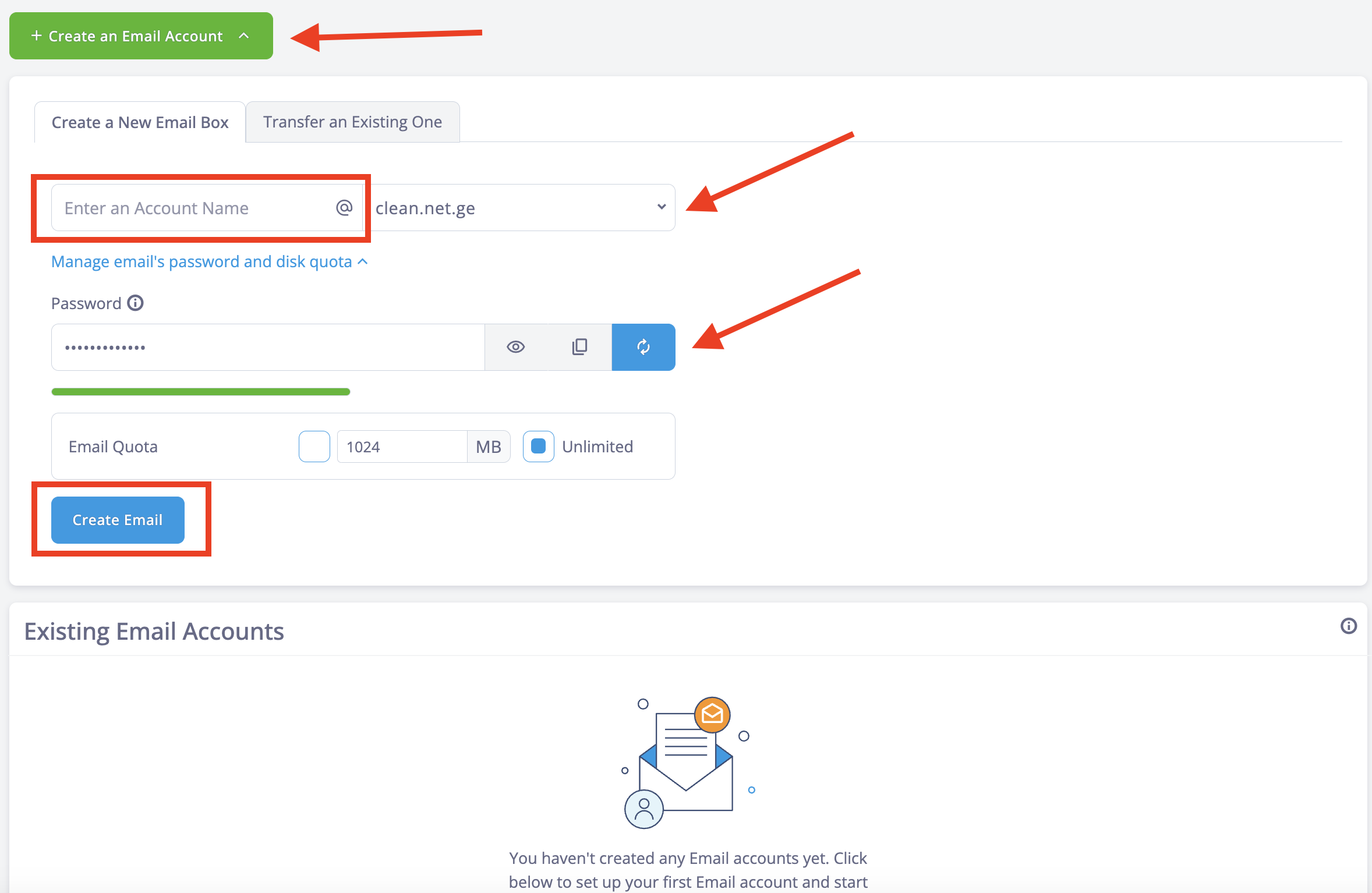
The “Create Email” button will confirm the creation of the new mailbox, and the address will appear in the list below the form you just used.
Additionally, the configuration settings for email clients will be displayed immediately after the mailbox is created.